
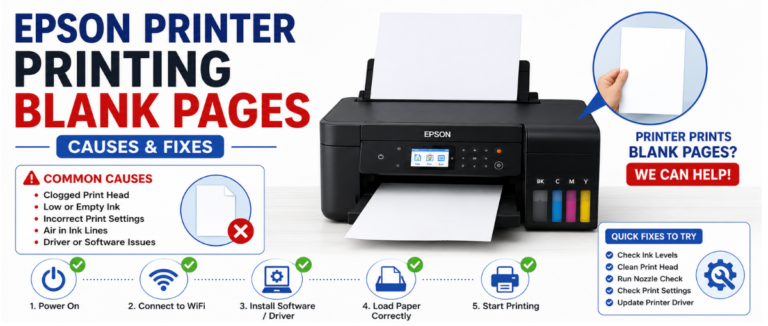
The Epson printer printing blank pages can happen for multiple reasons, including improperly installed ink cartridges, clogged print head nozzles, incorrect print settings, air in the ink lines, and more. Users facing such issues can easily resolve them by identifying the problem and applying the appropriate fix. With this guide, you can understand the common reasons behind Epson printers print blank pages and find effective solutions to resolve the issue.
Preliminary Check For Epson Printer Printing Blank Pages
Start by inspecting your printer’s basic settings and hardware components. Perform these initial checks to determine whether it is due to software, printhead, or ink-related issues.
Interpret The Epson Printer Status Lights
Examine the printer’s status lights right before troubleshooting. Each blinking indicator corresponds to a specific maintenance, hardware, or connectivity issue, helping identify the root cause.
- Power Light: Issue related to startup, power, and processing.
- Paper Indicator: Problem related to paper jam or paper feed.
- Ink Indicator: Low ink presence , cartridge error, or maintenance required.
- Error Indicator: Malfunctioning within the system.
- Network Indicator: Connectivity issues related to the network.
- Model-Specific Indicators: Refer to the printer’s user guide for it.
Verify Ink Cartridge Status
A major reason for blank pages is low, empty, or malfunctioning ink cartridges. Verify the cartridge status before performing advanced troubleshooting.
- Check the Ink Levels: Verify the current ink levels using the printer’s control panel or the Epson printer software.
- Replace Empty Cartridges: Install genuine Epson ink cartridges compatible with your printer model if any cartridge is low or empty.
- Reset the Ink System: If ink is still present in the ink tank but is not detected, perform an ink reset or reinstall the cartridge as per Epson’s instructions.
Confirm The Paper Configuration
Relying on incorrect paper settings can prevent the printer from printing correctly. Ensure the selected paper type and size properly match the paper loaded within the tray.
- Check the Paper Settings: Ensure the paper size and media type are configured properly.
- Load the Paper Properly: Ensure the paper is aligned correctly and the tray guides are adjusted securely.
Check The Print Queue
A blocked or overloaded print queue will prevent print jobs from processing correctly. It will lead to blank pages or delayed printing.
- Clear the Print Queue: Cancel any pending or stuck print jobs and restart the print queue.
- Print In Smaller Batches: Send fewer documents at a time in order to avoid overloading the print queue.
Verify The Printer Connection
Network or USB connectivity issues can easily interrupt communication between your computer and the Epson printer, resulting in blank pages.
- Inspect the Connection: Ensure the printer is properly connected to your Wi-Fi network or via a USB cable.
- Restart The Devices: Restart both the printer and the router to refresh the connection.
Why Epson Printer Printing Blank Pages: Troubleshooting Guide To Follow
Work through the following troubleshooting steps to identify the root cause of blank-page printing and restore normal print performance.
Clean The Print Head
It is one of the most common reasons an Epson printer prints blank pages. Dried ink or debris can easily block the print nozzles, preventing ink from reaching the paper.
To Resolve The Issue:
- Run A Print Head Cleaning Cycle: Use the built-in print head cleaning utility in the printer’s maintenance settings to clear clogged nozzles.
- Clean the Print Manually: If it remains, use the printer’s user guide to carefully remove and clean the print head using a lint-free cloth or an approved cleaning solution.
Confirm Software Compatibility
Software compatibility issues can easily interfere with printer communication and cause blank-page printing.
To Resolve The Issue:
- Verify Software Compatibility: Ensure your printing software and printer drivers are compatible with your Epson printer model.
- Update the Software: Install the latest Epson-recommended software and drivers for effective performance.
Inspect The Print Head For Possible Damage
A damaged print head can easily restrict the ink flow and cause your Epson printer to print blank pages. With regular cleaning, you can handle the matter.
To Resolve The Issue:
- Perform Regular Maintenance: Clean the print head regularly to remove ink buildup and maintain optimal print quality.
- Look For Professional Service: If the print head is damaged or worn, have an authorized service technician inspect or replace it.
Leading Reason Behind Epson Printing Blank Pages After Cleaning
Blank pages will not get resolved with cleaning only. Proper inspection of other issues is required, including clogged nozzles, low ink levels, and incorrect settings.
Persistent Print Head Clogs
Stubborn ink buildup may remain even after a proper cleaning, resulting in blank pages printing.
- Run Another Cleaning Cycle: Run the print head cleaning process once more.
- Perform Deep Cleaning: Prefer the deep-cleaning option to clear persistent clogs.
- Print A Nozzle Check: Verify whether the nozzles are printing correctly.
Incorrect Print Head Cleaning
Relying on the wrong cleaning procedure or avoiding recommended steps can prevent the print head from being cleaned effectively.
- Stick to Epson’s Recommended Procedure: Use the printer’s user manual for the correct cleaning steps.
- Use the Right Cleaning Utility: Run the built-in cleaning tool designed for the Epson printer model.
- Clean With Care: Complete each step as directed to avoid improper cleaning or potential damage to the print head.
Common Issues Behind Epson EcoTank Printing Blank Pages With Sufficient Ink
Even with full ink levels, the blank pages issue occurs. This can happen due to printhead performance, ink flow, printer settings, and other factors.
Trapped Air Affecting Ink Flow
Air bubbles within the ink tubes can easily interrupt the ink flow to the printhead, resulting in blank pages. It happens due to transportation or relocation of the printer.
- Run The Ink Charging : Use the ink charging feature to remove trapped air from the ink lines and restore proper ink flow.
- Follow Epson’s Maintenance Guide: Take help of your printer’s user manual for the recommended in-tube maintenance procedure.
- Keep the printer stable: Don’t move or tilt the printer to restrict the entry of air into ink lines.
Improper Ink Cartridge Installation
Loose or incorrectly installed ink cartridges can easily restrict ink flow to the print head, causing your Epson EcoTank to print blank pages.
- Reseat The Cartridges : Remove and insert the cartridges again until they click into place.
- Check the cartridge position: Ensure all the cartridges are properly aligned and locked.
- Use compatible cartridges: Replace the damaged or incompatible cartridges with genuine Epson cartridges.
Conclusion
This guide is your helping hand to get a thorough understanding of the reasons supporting Epson printers printing blank pages. If you are facing such an issue, you can rely on the troubleshooting steps mentioned above. If the problem still persists, take technical support. This will help you get things done at the earliest.
Related Post: How to Set Up and Use the Epson 8550 DTF Printer?
FAQs
A. Check the ink levels, run a nozzle check, clean the print head, update the printer driver, and verify print settings.
A. Yes, incorrect paper size, print settings, or media type can result in blank page printing.
A. Contact the Epson support if the issue still persists after completing all the recommended troubleshooting steps.
A. It can happen due to clogged print head nozzles, incorrect print settings, low ink, or driver-related issues.