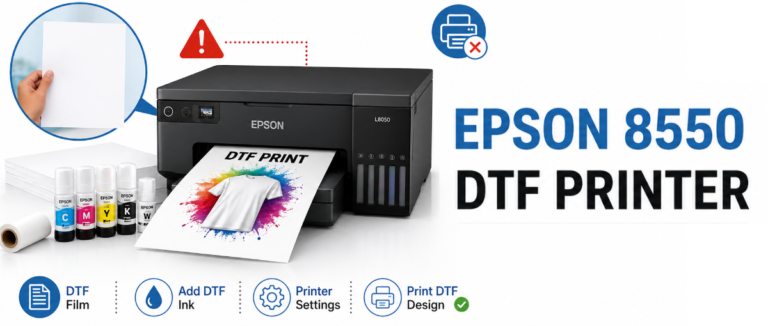
Epson 8550 DTF Printer is a unique opportunity for you to display your work on a wide range of products using the Direct-to-Film printing technology. The 5180 comes with the 11″ x 17″ scanner. It is cartridge-free and very flexible. How to use the Epson 8550 DTF printer: Get pro results with this comprehensive guide on how to set up the Epson 8550 printer for DTF Film. Here we have mentioned everything you ought to know about the Epson 8550 printer dtf. Therefore, kindly go through the instructions carefully to get started.
Epson 8550 DTF Printer Setup & Performance Guide
Why Consider the Epson 8550 DTF Printer? The Epson dtf printer 8550 is a printer that allows for full 13″x19″ borderless printing, heavy stock printing up to cardstock, and DTF transfer films. Comes with 6-color Vivid Claria ET Premium Ink. It is a simple printer that is only used for wireless printing. It is different from other printers because it does not require cartridges. Comes with cheaper ink bottles. If you are a fan of printing custom t-shirts, hoodies, and other apparel, this printer will give you the best results with precision.
Unbox and Set Up the Epson 8550 DTF Printer?
Unboxing and Initial Setup
What’s in the Box?
Inside the Epson 8550 DTF Printer Box, besides the printer, there is a power cord, six 70ml ink bottles (Photo Black, Black, Cyan, Magenta, Yellow, and Gray), a quick setup guide, and a CD-ROM containing software and drivers. Please ensure you have all the items at hand before you begin.
Unboxing and setting up the Epson EcoTank ET-8550 for DTF requires removing all the blue tapes, installing the specialized DTF ink instead of the ink provded, refilling the ink tanks, and performing the initial calibration. For this, it is require to remove the front roller, adjust the print head, and install the DTF software (RIP).
Setting up the Printer
- Select a Location: Place the printer on a flat surface so the paper trays and the rear feed are not blocked. It is a large printer (523 x 379 x 169 mm). So, it requires enough space, especially if you plan to print with a larger paper size.
- Unpack the Printer: Remove the tape on the outside of the printer and inside the ink tank compartment and around the print head.
- Connect the print head: Connect the print head as shown in the quick setup guide, which only takes 30 seconds to do.
- Ink Tank Filling: Open the ink tank lid and fill the ink tanks accordingly (Photo Black, Cyan). The EcoFit bottles have a spill-free and mess-free filling system. Never use different colored ink, as this may cause damage to your printer.
- Connecting Power and Turning On: Connect the power cord and turn on your printer. The 4.3-inch touch screen in color will now guide you through a series of screens to set up your printer.
Install Drivers and Software for the Epson 8550?
Installation and Configuration of the Software
Installing Drivers and Software
To fully unlock the potential of your Epson 8550 DTF Printer, it is necessary to download and install the necessary drivers and software:
- Download Drivers: To download the latest drivers for your Windows or Mac operating system, go to the Epson website. If you do not have a CD-ROM drive, skip this CD-ROM.
- Install Epson Print Layout (EPL): EPL is necessary to control your print settings and to have accurate control over your colors. EPL is not officially declare to be compatible with printers, but it works perfectly with the Epson 8550 printer dtf.
- DTF Software: In addition to the DTF printer, you will require some RIP software, like the Printable XL, which will take care of the ink control, profile matching, and white ink circulation. Set this up on the software to recognize the Epson 8550 printer dtf. Resolution is set at 5760 x 1440 dpi for the best quality.
Connecting the Printer
The Epson 8550 DTF Printer is connected using various options:
- Wi-Fi / Wi-Fi Direct: Simply touch the screen to connect to your network.
- Ethernet / USB: If you require a secure connection, you can use the USB Type-B connector or the LAN connector.
- Epson Smart Panel App: Get the app on the App Store or Google Play Store to instantly print, copy, or troubleshoot using your mobile device.
How to Load DTF Film and Ink Properly in Epson?
How to Prepare Your File for DTF Printing?
DTF Conversion Requirements
In order to convert the Epson 8550 DTF Printer for DTF printing, you will require:
- DTF Ink: You will require DTF ink that is compatible with the Epson 8550 printer. Some of the DTF ink available is the Film Direct TFP ink.
- DTF Transfer Film: The DTF film should be 13″x19″ or less. It is a DTF film.
- DTF Curing Powder: The powder is used once the print has been done to ensure that the ink sticks to the clothing.
- Tools: A magnetic screwdriver and tweezers for the adjustment of the printhead.
Adjusting the Printhead
The DTF film might get stuck in the output tray roller. In order to get rid of these films:
- Turn the printer on to allow the printhead to move.
- Turn the printer off and unplug it to allow the printhead to move.
- Using a screwdriver, you will need to open the roller door, unscrew the baffle screws, and pull out the roller.
What Is the Step-by-Step Process to Print Using Epson 8550 DTF Printer?
The process of printing with the Epson 8550 printer dtf includes loading DTF film, printing a mirrored design using RIP software such as CADLink, adding curing powder, and baking at 385°F for 200 seconds. Additionally, it is crucial to carry out regular maintenance, such as daily nozzle checks using DTF inks to avoid nozzle clogging.
Printing Your First DTF Design
- Charge DTF Film: Place your DTF transfer film in the rear paper feed slot with the side for printing facing up. The 8550 DTF Printer from Epson accepts media up to 1.3 mm thick.
- Print a Nozzle Check: From your touch screen, navigate to Maintenance > Nozzle Check to ensure your printhead is clean of clogs. If you have any lines, you may want to clean your printhead.
- Set up Print: Select your correct ICC profile for your DTF film using your RIP software or EPL. Ensure that your white ink circulation remains high for optimal color.
- Print a Test Page: Print a small design as a test to ensure color quality and resolution.
- For curing powder: Spread a single layer of DTF powder on your print film and cure with a heat press at your required temperature.
How to Maintain and Troubleshoot Common Epson DTF Printer Issues?
Tips for Optimal Performance
- Use High-Quality Supplies: You need to use good-quality DTF inks and films, which are only available for a single-pass printer, to prevent clogging of the nozzles and to produce excellent quality prints with bright colors.
- Serve the machine regularly: one of the things that is hindering you from doing the job is the white ink clogs, which cause damage to your progress of DTG printing.
- Paper source choice: Ensure that there is always a DTF film and rear feed selected in the paper source, which can prevent problems since the printer can default to Cassette 2.
- Play with Settings: Play with different color profiles and ink flow in your RIP software to attain the smoothest quality images.
Troubleshooting Common Issues
- Paper Feed Issues: Check the paper feed rollers or possibly the RIP software settings, which can cause overprinting of the paper feed.
- Prints Are Faded: Ensure that you have selected the right ICC profile and that the print head is clean.
- Printer Offline: Ensure that your connection is good (Wi-Fi, USB, or Ethernet), and reboot the printer and computer.
Conclusion
The Epson 8550 DTF Printer is a budget-friendly all-in-one printer for professional DTF printing. By using this guide, you will be able to establish your printer, establish your being printer for DTF printer, and then make beautiful designs with your DTF printer fast. With proper maintenance and feeding of your printer, the Epson 8550 DTF Printer is a game-changer for your creative projects or small businesses. Print with your Epson DTF Printer now and let your creativity soar!
Related Post:
FAQs
A. Water-based DTF ink specifically manufactured for use in modified Epson 8550 DTF printers should be used.
A. Windows OS Requirements
- Supported Operating Systems: Windows 11, Windows 10 (32-bit and 64-bit versions), Windows 8/8.1 (32-bit and 64-bit versions), Windows 7 (32-bit and 64-bit versions), and Windows Server 2003 SP2 or higher.
- Supported Driver Type: ESC/P Raster Driver.
- Included Software: Epson Photo+, Epson ScanSmart, and EpsonNet Config.
MacOS Operating System Requirements
- Supports Operating Systems: macOS 10.6.8 – 11.x or later version, this includes 10.13.x, 10.14.x, 10.15.x, 11.x, 12.x, and 13.x.
- Supported Driver Type: Epson Scan 2 Driver.
A. The problems encountered while printing with the epson 8550 printer dtf can be caused by the failure of the printer to detect the transparent film by the printer.
A. No, you cannot substitute ordinary paper for DTF film in the Direct to Film printing process using an Epson 8550 printer. This is because the DTF film is designe to contain the wet ink and enable adhesion of the powder.
A. Yes, the Epson EcoTank ET-8550 printer is a great option for small business DTF printing, commonly selected due to its low startup costs. Large format (A3+) printing capability and a convenient ink tank setup without cartridges. However, it needs modification (with dedicated DTF inks and software) for efficient DTF printing.