
Ever gotten an incompatible cartridge error on your HP printer just after hitting print? Maybe you’ve encountered random codes from your HP printer, or it’s showing offline or unable to connect to Wi-Fi. These are many of the daily frustrations that HP printer users face, and understanding how to reset HP printer can often help resolve them quickly.
These problems can frequently be fixed without needing to call a technician for help. The easiest way to fix it is often to simply reset the device, as this can usually restore it to working order. One commonly asked question is: How do you safely reset an HP printer?
Keep in mind that if the cartridge in your HP printer is incompatible, your printer says it’s offline, or you have an error code on your HP printer, the first thing you want to ask yourself is: how do I reset HP printer?
Resetting the printer can sometimes resolve errors related to ink compatibility and network connectivity. Regardless of the error you’re experiencing, learning how to do a reset can be very useful as a user.
How to Reset HP Printer?
The main purpose of performing the reset procedure on your HP Printer is to clear all data in temporary memory, correct software bugs, and logically unlock the unit to regain connectivity, and clear error messages, such as a paper jam or ink cartridge errors. This is analogous to performing a physical power reset (hard reset) on your device and returning your HP Printer to its original factory-installed settings.
The following are examples of issues that may be resolved by performing an HP Printer reset:
- Connectivity Issues: Resolves Wi-Fi connection errors when the printer goes offline frequently or does not connect to the HP Smart app.
- Persistent Error Codes: Clears the illuminated error lights, non-responsive frozen screens, or misreported paper jams.
- Cartridge Errors: Fixes problems where the printer fails to recognize either a brand-new, genuine, or third-party ink cartridge.
- Set-Up/Security Issues: Default password reset if the user has lost the device’s password, and presale configuration to be utilized as a normal operating feature.
Types of HP Printer Resets:
There are three types of resets for an HP printer. However, you must know which solution is the best for this problem before attempting to reset it. Each reset has a different purpose, and a particular problem could be resolved with one of the following reset options.
Examples include fixing a frozen screen, clearing the printer network, or restoring printer defaults. It could include the HP printing cartridge not compatible with the printer. The HP printer is offline. Or you’re receiving repeated code errors from your HP printer.
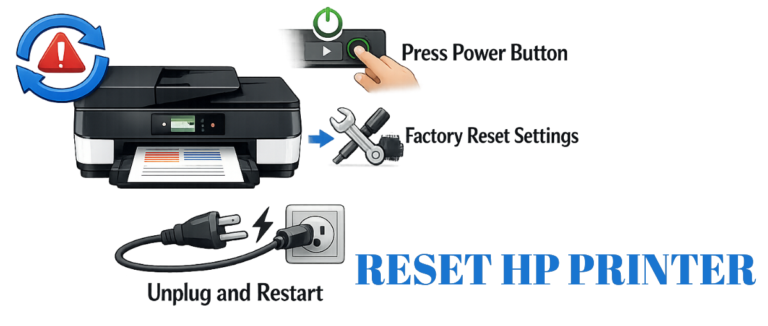
- A soft reset is the quickest way to reset HP printer.
- Turn the printer off.
- Disconnect from the power outlet.
- Wait for approximately 30 to 60 seconds.
- Reconnect to the power outlet and turn the Printer on again.
- If you do not have a network connection through either, a reset of the printer could provide you with the means of restoring connectivity.
- Performing a network reset on an HP printer removes all saved networks.
- So you can connect to all networks again without having to clear out all saved networks.
- A factory reset will be the most extreme measure for resetting your HP printer.
- A factory reset restores your HP printer to the original factory settings and clears all user settings and user data saved on the printer.
How to Do Factory Reset HP Printer?
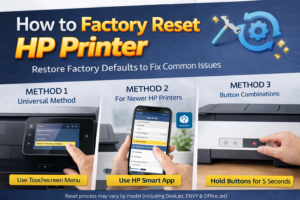
Many users ask how they can reset HP printer. When they ask this question, what they generally want is to restore factory defaults on the printer. This factory reset can resolve issues like cartridges being reported as incompatible on HP printers when the printer is receiving multiple codes or remaining offline after troubleshooting the issue. Below are instructions on how to perform a factory reset based on your particular model of HP printer (also known as an HP firmware reset).
Method 1:-
Universal Method (Control Panel or HP Smart App): For those who have a touchscreen printer, you can perform a factory reset from the printer’s menu very easily.
Steps (For Touchscreen Printer):
- From the printer’s display, select the ‘Setup’ or ‘Settings’ menu.
- Select ‘Printer Maintenance’ or ‘Service Menu’.
- Choose ‘Restore Defaults’ or ‘Restore Factory Settings’.
- Confirm that you want to do a reset. The HP printer will reboot to its original factory settings.
Method 2:-
For newer HP Printers, you can perform this same procedure using the HP Smart App on your mobile device.
The HP Smart App makes it easy to complete this process on newer HP printers. Follow the process:
(Hewlett-Packard Smart Application Instructions)
- Use the Hewlett-Packard (HP) Smart Application on your personal computer or mobile phone.
- Access ‘Advanced Settings’ by selecting your Printer.
- Navigate to the ‘Settings’ tab and choose ‘Restore Defaults’.
- When prompted, choose the ‘Confirm’ option.
- This approach should work well with most current model HP DeskJet, ENVY, and Office Jet printers.
Method 3:-
While Using Button Combinations to Do a Factory Reset (For Non-Touch Screen Models)
Key points while reset HP Printer without Touchscreen Controls:
- If your model does NOT have a touchscreen, you should use a button combination to execute a factory reset.
- Button combinations are commonly used; if you want to find out how to perform a factory reset on an HP printer that does not have a touchscreen.
- Some common button combinations to use for doing a reset;
- Include holding down both the Wi-Fi and Cancel buttons until the printer blinks.
- Or hold down the Power, Cancel, and Down Arrow buttons at the same time for 3 to 10 seconds.
Here are specific examples of button combinations to use for resetting certain models:
- For example, to do an HP Ink Tank 410 factory reset, you would hold the Cancel, Wireless, and Power buttons at the same time.
- When attempting to do a factory reset for the HP LaserJet M140w, you would press the Cancel and Wireless buttons until seeing “NU” appear on your screen, and then choose OK.
- It will be very important to learn the button combinations needed to perform a factory reset prior to starting to search for how to perform a hard reset on an HP printer.
Troubleshooting Wi-Fi Issues After a Factory Reset on Your HP Printer
If you perform a factory reset of your HP printer, all stored Wi-Fi network settings will be deleted; however, you may still not be able to connect to Wi-Fi. Here are some things to try:
- Check to ensure that your router is compatible with your printer.
- Use the HP Smart App to reconfigure Wi-Fi settings for your printer.
- Make sure that your printer is not in HP printer offline mode.
- If you have a non-touch printer, perform an additional button combination reset, just as with a hard reset of an HP printer.
When to Call HP Support?
If you cannot establish a connection after trying these steps several times, or if:
- You are unable to perform a firmware update.
- The printer continues to be offline after several factory resets.
- You still receive cartridge or hardware error messages.
In such instances, it may be advisable to call HP Support.
Still having trouble with your printer? Our experts are here to help—connect with Printers Technician now!
Related Post: Connect HP Printer to Computer
Conclusion
Resetting an HP printer is very safe and is typically a quick solution to working through issues with your printer, and it often puts an end to your technical troubles and puts your printer back into service. If you are wondering how to reset HP printer, this guide will help you do it. We trust that you find this content helpful and can reset your HP printer efficiently. Feel free to contact our experts at any time for further assistance and guidance.
FAQs
A. No, resetting your printer does not create any negative impacts on it. You would only be restoring the factory default settings for your HP printer.
A. No, your printer’s drivers will stay intact after performing a factory reset on your printer.
A. You can easily learn how to reset an HP printer, including first-time users.
A. Resetting your HP printer repairs many problems. However, it is essential to know that some problems with your printer might require other actions to resolve. For instance, if your printer is offline, errors with the error codes, incorrect ink level indications, etc. This could be resolved with a printer reset. But other issues may require a firmware update or cleaning of your cartridges.
A. When you perform a printer reset, your third-party cartridges will work just fine, but you may need to reconfigure them following the resetting action.