
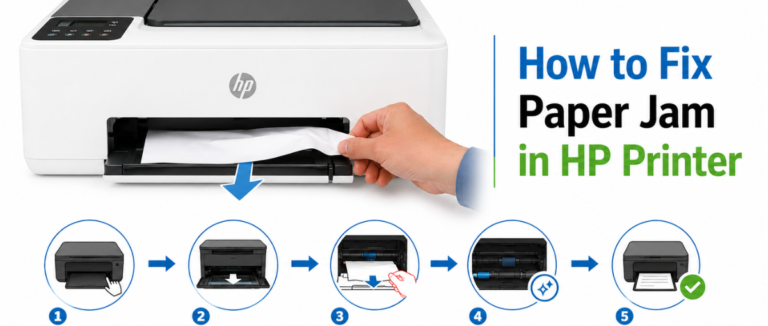
Issues such as paper jams may seem small, but their sudden occurrence can have a major impact on productivity and workflow. So it’s better to leave no room for such issues, and if it’s a matter of the moment, solve it with the right strategy to prevent it for the future. There are various reasons for this, including torn paper fragments, improper paper loading, foreign objects inside the printer, and more. In this guide, we will discuss how to fix a paper jam in an HP printer and other crucial factors related to it. Stay tuned to know further.
How To Fix Paper Jam In HP Printer?
With the help of below given points, you can easily fix a paper jam in an HP printer. Go through all of them at once:
1. Clear The Paper Tray
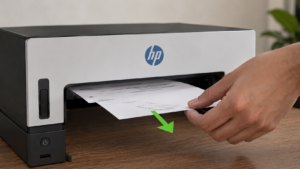
- Take all the loose paper out of the input tray. If the paper is stuck, just pull it out with care to prevent tearing.
- Check where the printed pages exit and then pull any jammed paper up and out.
2. Figure Out Where The Cartridge Access Area Is
- Open the access door of the ink cartridges or toners.
- Ensure the print cartridge isn’t blocked by any of the paper bits, and slide it gently from side to side.
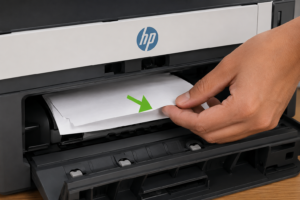
- If your printer model has a paper path, then cover behind the carriage, lift or remove it to check underneath.
3. Check The Rear And Bottom Doors
- Verify the back of your printer. Now open the rear door (if applicable), then pull out any trapped paper.
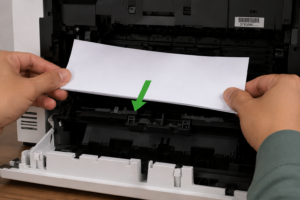
- There are many HP Deskjet and Smart Tank models that have a small trap door under or at the bottom of the printer, secured with clips. Just open it in order to remove the deeply lodged paper debris.
4. Wipe Out The Dirt From The Paper Rollers
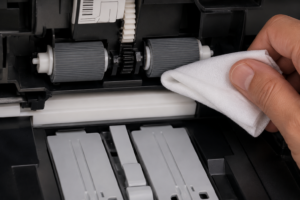
- If there is any dirt and debris on the rubber feed rollers, it can prevent paper from feeding correctly.
- Take a lint-free cloth lightly dampened with distilled water to wipe down the rollers, and then rotate them upward with your fingers. Leave them to dry for about 10 minutes, then retry later.
5. Final Reset
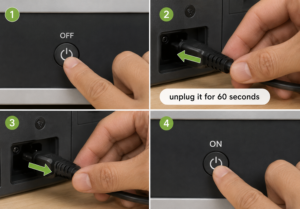
- Now reconnect the power cord and turn on the printer.
- Press the cancel or resume button on the control panel in order to clear the error.
What Are The Reasons Behind The HP Printer Getting Jammed?
The following are common causes of an HP printer getting jammed. Go through all of them one by one:
Dirty Or Damaged Paper Rollers
The presence of dust and paper fibers covering the top of the rubber rollers that feed the paper is causing them to slip out of position.
Improper Paper Loading
Overloading the tray by mixing different types/thicknesses of paper allows the printer to grab multiple sheets at once. This automatically results in jam.
Torn Paper Scraps
If there is any tiny or hidden piece of a previously ripped page inside it , it will trigger false paper jams.
What Are The Signs Of A Paper Jam In An HP Printer?
Here are some of the signs of a paper jam in an HP printer: Go through all of them at once
| Physical signs | Digital signs | Audio and functional signs |
|
|
|
Ways To Prevent Future Paper Jams
With the tips below, you can easily prevent future paper jams. Check them out one by one:
- Always use a genuine HP-recommended paper.
- Do store the paper in a dry environment.
- Do not mix the paper types in the tray.
- Keep the rollers clear on a regular basis.
- Don’t exceed the capacity of the tray’s paper.
- Do fan the paper stack before loading.
What If The Paper Jam Error Persists In The HP Printer?
If you have removed all the visible paper, but the remains are still there, you are required to follow the steps below:
- Refresh the printer system.
- Examine the paper path for scraps.
- Check the condition of the roller.
- Reinstall the ink cartridge and paper tray.
- Remove the internal debris.
Related Post: How To Fix Poor Print Quality In Windows?
Conclusion!
If you are wondering how to fix a paper jam in an HP printer, just follow the simple troubleshooting steps. By finding out the cause of the jam, such as checking the printer’s internal components, removing any stuck paper, cleaning the feed rollers, and others, you can easily restore your HP printer to its normal state.
Along with this, maintain it regularly and follow proper paper handling to prevent future paper jams and improve the printer’s overall performance. If the issue remains the same, then contact HP support for further assistance.
FAQs!
Q1. What should I do if the paper tears inside the printer?
A. Examine the paper path, cartridge area, rear access door, and rollers for leftover paper fragments. Carefully remove all torn pieces before restarting the printer.
Q2. What if the paper jam error is still there even after the removal of all visible paper?
A. If the error persists, check the printer for hidden paper scraps, clean the rollers, check for blocked sensors, reinstall the cartridges and trays, and initiate a printer reset.
Q3. Why is my HP printer making grinding noises during printing?
A. A grinding or clicking noise often occurs due to a paper jam, a foreign object inside the printer, or a paper feeding issue. Do check the paper path and remove any kind of obstructions.
Q4. How do I remove stuck paper from my HP printer ?
A. First, turn off the printer and unplug it. Open all accessible doors and gently pull the jammed paper toward the paper path. Don’t use excessive force; this will tear the paper.