
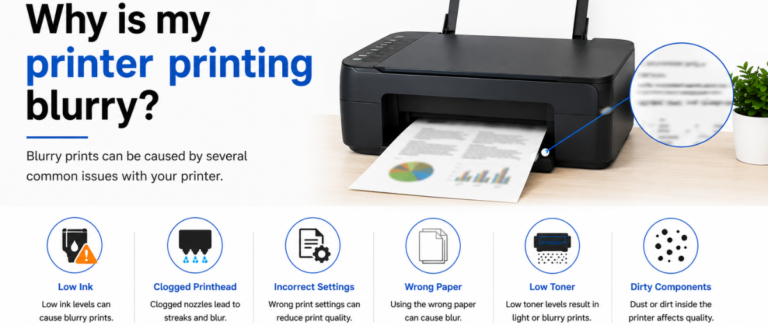
If you have enough of your printer and are holding 100th paper with poor print quality, we have got you covered. Such occasional discrepancies with your printer can leave you frustrated, but not hopeless, as we are here to lend you a hand with the right solution. With the support of our experts, we can take you out of the loop created by the question “Why is my printer printing blurry?” So stay tuned to this guide to learn the root cause and an effective solution to handle such chaos at any time.
Why Is My Printer Printing Blurry? Major signs of it
Why is my printer printing blurry? If you are not aware of the leading causes of doing so, here are some of them that you can take advantage of to claim it strongly.
- Unexpected Horizontal Lines In Bulk
Thin, undesired lines throughout the printed page are one of the leading and classic reasons for poor print quality. It shows the printhead nozzles are perfectly clogged with dried ink.
- Receiving Light And Dull Prints
You may notice lighter text and images than usual. This will automatically reduce the readability. It happens due to low ink or toner levels, clogged printheads,, and more.
- Text And Images Are Printing Blurry
There will be a lack of sharpness, or it will look smeared. The reasons could be many, such as low-resolution printing, incorrect print settings, and others.
- Partial Color Printing
Certain colors may not print at all. This will result in inaccurate images or graphics. It happens due to various issues within the ink, such as being empty, improperly installed, or clogged.
- Inaccurate Color Printing
There will be a mismatch between the colors on paper and what is displayed on the screen. This could happen for various reasons, such as low ink levels, improper color settings, or an outdated printer.
- Print Smudging
You will notice smudges, random ink marks, or streaks on printed pages. All of these issues arise from wet ink, unsuitable paper, or dirty internal printer components.
- Blank Pages
The printer will work properly but will produce blank pages. This will result in clogged printheads, protective tape left on new cartridges, or software-related issues.
Related Troubleshooting: Why Is HP Printer Printing Blank Pages?
What Leads To The Poor Print Quality In Windows?
All the reasons that collectively lead to the thought, “Why is my printer printing blurry?” are listed below. Go through all of them one by one.
- Low Or Empty Ink Or Toner Cartridges
When the ink or toner levels are running low, you will receive faded, incomplete, or streaky results.
- Printhead Nozzle Clogs
If there are inkjet printers, they can develop clogged nozzles over time, leading to lines, color issues, or uneven print results.
- Faulty Print Configuration
Adjusting default print settings, such as choosing draft mode or low print quality, can impact the print results.
- Outdated Print Drivers
Preferring an outdated print driver can cause trouble with printing.
- Choosing The Wrong Paper
If you are using the wrong paper type or poor-quality paper, it can lead to blurry text, smudging, and poor color reproduction.
- Issues With Printhead Alignment
If the printhead is misaligned, it will lead to overlapping lines, blurry text, or distorted images.
- Debris In Print Components
dirt, dust, or toner buildup on rollers or internal components, can create spots, streaks, smudges, or printed pages.
- Improper Color Settings
Improper color management settings in Windows or the printer software can easily cause colors to appear completely different from those displayed on the screen.
How To Resolve Print Issues In Window 10 And 11
To resolve the issues related to printing in Windows, you can take the help of the steps mentioned below.
Use The Automated Troubleshooter
Just let Windows automatically figure out and repair common printer configuration issues.
| Windows 10 | Windows 11 |
| 1. Click on Start and open Settings
2. select update and security 3. Click Troubleshoot from the left-hand pane 4. Now select additional troubleshooters (if available) 5. Now, locate and click on the printer 6. Now choose to run the troubleshooter 7. Click on the printer that needs to be troubleshooted , if prompted 8. Now follow the on-screen instructions to resolve printer-related issues. |
1. Click the start button and then open settings
2. Choose Bluetooth and devices from the left-hand menu 3. Click on printers and scanners 4. Click on the printer having print quality issues. 5. Select Run the troubleshooter 6. If it is not available, then go to the system, click troubleshoot, and other troubleshooters 7. Look for the printer from the list and click Run. 8. Adhere to the on-screen instructions in order to figure out and resolve any printer-related issues. |
Reset The Print Spooler Service
- Click on the Windows key + R, type services.msc, and press Enter
- Now scroll down , right-click Print Spooler, and choose Stop
- press on windows key + r, type C: \ windows\system32\spool\printers, and then press enter.
- Now delete all the files that are available within the folder.
- At last, go back to the services window, right-click on print spooler, and select start.
Reinstall The Drivers And Update Them
- Click right on Start and choose Device Manager
- Now click to expand print queues
- Right-click your printer and choose Update Driver, and it will automatically search for drivers.
- If it is already in an updated mode, right-click and select the uninstall device, then restart your computer. Windows automatically attempts to reinstall the base driver upon reboot.
Check The Connection
If you are using a wired printer, first unplug it, then firmly connect both ends of the USB cable.
Ensure your printer is connected to the same wireless network as your PC. If not, just reconnect it to Wi-Fi using the printer’s built-in control panel.
When Should You Connect With Printer Support ?
If your printer is printing light or faded text as well as showing the symptoms listed below, you must seek technical support immediately.
- If your printer is showing the symptoms listed below, you must seek technical support immediately.
- Printers showing persistent error or service code
- Hardware malfunctions involving physical components, grinding noises from the machine, paper sensors constantly misreading, and many more.
- Printers failing to perform crucial firmware updates via wifi , USB.
- Problem within the network or the driver
Conclusion?
It’s quite frustrating to deal with the thought of “Why is my printer printing blurry?” especially when the emergency is running overhead. It causes blurry text, missing colors, faded prints, and unexpected streaks. Although this looks rigid, it’s quite easy to solve if the right steps are followed. If you are looking, you can use this guide to deal with such issues. But if the issue remains the same, you should seek appropriate technical support. Apart from regular maintenance, on-time updates are mandatory to expect quality results.
FAQs
A. It is happening due to clogged printhead nozzles, low ink levels, dirty rollers, or debris inside the printer.
A. Yes, using low-quality or incompatible paper can lead to poor print quality, including smudging, blurriness, poor color reproduction, and more.
A. Even if you have completed the troubleshooting steps, identified hardware malfunctions, properly encountered error codes, or were unable to complete the firmware update, you must seek printer support.
A. Yes, using outdated or corrupted drivers can lead to various printing issues such as color inaccuracies, poor print quality, and communication errors between the printer and Windows.