
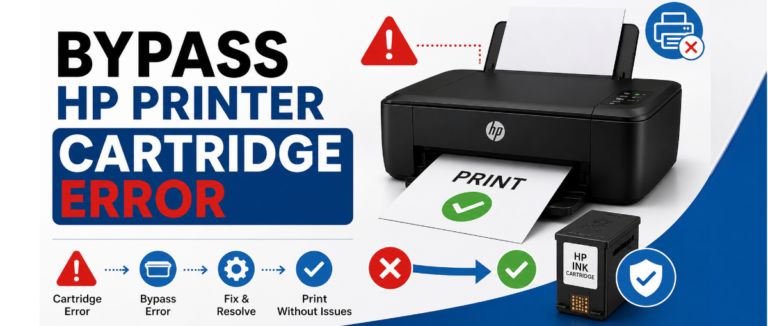
A few things feel quite frustrating, especially when your printer refuses to work. You have got documents to create and print, deadlines to meet and many more. But your HP printer just flashes a cartridge issue- even though the ink looks fine. These errors are quite common, but the best thing is that they are usually fixable. So, if you also want to know how to bypass HP printer cartridge error or face other issues, then this article will provide you with the most effective solutions.
Common Reasons Behind HP Printer Errors
Understanding why such printer issues occur makes troubleshooting quite easier. Here are the most frequent issues that one can face;
- Non-genuine or incompatible cartridges: Your printer is designed to work with some specific models. Right? So, sometimes a third-party or refilled one might have chips that your device failed to recognize.
- Dirty or damaged contacts on your cartridge: The small copper-colored contacts might communicate with your device. Dust, dried ink, or debris on these contacts can simply interrupt the connection. This can lead your printer to misread or even reject the cartridge completely.
- Incorrect installation: A cartridge that failed to seat in its slot fully will never register properly. This is, although one of the simplest problems to resolve, one of the most overlooked.
- Firmware restrictions: Your device releases firmware updates that can just tighten restrictions on non-HP cartridges. Thus, if your device has been recently updated automatically, it can now reject that which has worked fine before.
- Expired cartridge: Some have internal expiration dates- so this could be the reason why your device refuses to use them regardless of the amount of ink remaining.
But with the right solutions, you can easily do HP cartridge error fix in no time!
How to Bypass HP Printer Cartridge Error (Step-by-Step Guide)
Follow the steps mentioned below to resolve recognition-related errors:
Step 1: Turn off your printer and restart it.
- Turn off your printer via the power button.
- Unplug the power cord from the back and the wall outlet.
- Wait for 60 seconds and reconnect.
- Turn the printer back on.
- Allow the printer to initialize completely before testing.
Step 2: Remove and reinstall the cartridge.
- Open the access door and wait till its stop moving.
- Press down on it to release and then pull it out of the slot.
- Inspect for any visible damage or leaking ink.
- Reinsert your cartridge into its color-coded slot.
- Press firmly > close the access door > reinitialize your device.
3rd Step: Check the compatibility of the cartridge.
- Note the exact number printer on the cartridge label.
- Compare it against the specification of your printer.
- Verify if your cartridge is intended for your region or not.
Step 4: Clean all the electrical contacts properly.
- Turn off the printer and unplug it properly from power.
- Remove the cartridge displaying the issue.
- Locate the copper or gold-colored contacts.
- Dampen a lint-free cloth with distilled water.
- Gently wipe the contacts and use a dry, lint-free cloth to wipe.
- Allow everything to dry for at least 10 minutes.
- Reinstall the cartridge and power on the printer.
Step 5: Go to the settings and disable the cartridge protection.
Printer with a touchscreen;
- Open the setup or settings icon on the control panel.
- Go to the system setup or printer settings.
- Choose supply settings and find cartridge policy.
- Set it off and find the cartridge protection.
- Set it off and restart the printer.
Printer without a touchscreen;
- Hold down the back button repeatedly.
- Choose ok option for entering the setup.
- Use the arrow keys > navigate to supply settings > ok.
- Choose the cartridge policy and set it off > confirm.
- Restart your printer properly.
Through HP software on Windows.
- Open the control panel and choose devices and printers.
- Right-click your HP printer.
- Choose printer properties and move to the toolbox, estimated ink levels.
- Find the cartridge protection settings and then disable them.
- Apply the chances and restart the printer properly.
Thus, following the above steps helps in resolving the HP printer cartridge problem bypass properly.
Conclusion
Cartridge issues are quite common, but they rarely indicate a serious hardware problem. In most cases, the methods discussed above can help you successfully resolve the issue and understand How to Bypass HP Printer Cartridge Error without unnecessary frustration. You can also try a different cartridge—ideally one designed for your printer model—to determine whether the problem is with the cartridge or the device itself.
But still, something is bothering you related to the printer/subscription, so feel free to reach out to our technician for a quick solution!
Related Post: Fix HP Printer Printing Blank Pages
FAQs
A. Restart the printer, clean the cartridge contacts, reinstall properly and then disable the cartridge protection. Some models just need to be reset using buttons, but a full bypass is not quite possible.
A. Yes, but you can see issues or warnings due to HP security features. Print quality, as well as ink level detection, might not work perfectly.
A. It usually happens due to dirty contacts, wrong installation, or a damaged cartridge. Sometimes the firmware blocks all the non-HP cartridges.
A. Reinstall the cartridge, clean contacts, and try another compatible one. Reset the printer and disable the protection if required.
A. It works, but can quite affect warranty and printer performance. Use good-quality compatible ink to reduce the risks.