
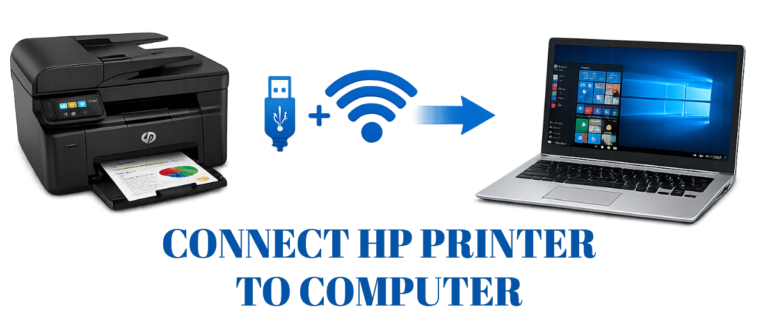
Are you looking for some top-notch steps for how to connect HP printer to computer? Well then, you should definitely read this article. The best way to connect HP printer to computer is to plug it in. After that, make sure you turn it on. “Add a device” using the HP Smart app (for Wi-Fi) or Windows Settings (for USB). Keep in mind that Drivers must be installed. A network connection must be made (if wireless), and a test page must be printed.
You would need to first connect HP printer to computer. Install the paper and ink, and turn the printer on. Now make sure it is connected via USB or the same Wi-Fi network as the computer. To add the device and install drivers, use the Windows/Mac settings or the HP Smart App (recommended). In this post, we have mentioned a step-by-step process that will help you get through accurately. And in no time, as a result, you will be able to complete the process.
How To Connect HP Printer To Computer?
Complete Guide For Windows And Mac:- To be able to connect your HP printer to the computer, you would need to follow these steps:- Start by installing the HP Smart app from 123.hp.com or your app store.
- Turn on the printer.
- Make sure it is connected to the same Wi-Fi network.
Methods on how to connect HP printer to computer?
- The Wireless Setup (Most Popular):
- Prepare – Make sure your printer is in setup mode by turning it on and holding down the Wireless/Resume button until the lights flash.
- HP Smart App – On your PC, download and launch the HP Smart app.
- Add Printer – Choose your printer from the list by clicking “Add Printer” or the plus sign (+).
- Network Setup – To connect the printer to your Wi-Fi network, follow the instructions.
- USB Cable Setup (The easiest using Windows):
- Connect – Attach the USB cable to both the printer and a USB port on your PC.
- Detection – Windows ought to install the drivers and identify the printer on its own.
- Add Device – If it doesn’t show up automatically, go to Settings > Printers & Scanners > Add a printer or scanner.
- Wi-Fi Direct (This doesn’t require a network):
- Activate – On your printer’s control panel, turn on the ‘Wi-Fi Direct’.
- Connect the PC – Open the Wi-Fi settings on your computer, then connect to the printer’s network name.
How to Connect HP Printer to HP Computer?
Make sure your printer is turned on. Download and launch the HP Smart app from the Microsoft Store. Choose “Add Printer” to connect via USB or Wi-Fi in order to connect an HP printer to an HP computer. As an alternative, navigate to Windows Settings > Bluetooth & devices > Printers & scanners > Add device.Method 1: Using the HP Smart App (Suggested)
- Downloading & Installing: Find and install the ‘HP Smart app’ by opening the Microsoft Store on your PC.
- Setting up the Printer: Set up your printer by turning it on. Make sure the printer is in setup mode if it is wireless. (usually by holding the Wireless and Cancel buttons until the light flashes).
- Add Printer: To identify your printer, launch the application. Select “Add Printer” or the plus sign (+), and then follow the on-screen directions.
- Network Setup: If asked to select your wireless network, enter the password to connect your printer to your computer’s wireless network.
Method 2: Connecting via USB
- Connect: Connect a USB cord from the back of your printer to your HP’s USB port.
- Automatic Installation: Automatic detection and installation of the printer will occur within Windows.
- Confirmation: To verify that your printer is connected and working, access Settings>Bluetooth and Devices>Printers and Scanners.
How to Connect an HP Printer to a Mac Computer?
To add an HP printer to a Mac, make sure the HP printer has power. And it is connected to your home or office network via USB or Wi-Fi. On your Mac, open System Preferences > Printers & Scanners. Then click on the “Add Printer, Scanner or Fax” icon. And find your printer in the list of available prints. Press “Install”. To learn how to connect your HP printer to a Mac computer, follow these steps:Method 1: Using the System Settings (Recommended)
- Connecting your printer: either via USB or make sure the printer is connected to the same Wi-Fi as your Mac.
- Open Printers & Scanners: Click on the “Apple” menu first, choose “System Preferences”, and then choose “Printers & Scanners”.
- Adding your printer: Choose the “Adding” icon (the “+”) or
- Select the Printer: Select the required printer from the given list.
- Configuration: When you’re prompted, select the ‘AirPrint or HP driver in ‘Use’ section and click on ‘Add’.
Method 2: Using the HP Smart App for 123.hp.com setup
- If you haven’t already done so, download the HP Smart App through the Mac App Store or visit 123.hp.com.
- Once HP Smart opens, press “Add Printer” or the (+) symbol.
- Complete the printer setup. Follow the onscreen prompts to configure your HP printer for Wi-Fi connectivity and finish the installation.
Conclusion
The above instructions and steps are absolutely reliable and should help you with how to connect HP printer to computer. For further guidance, you can contact our technical team. They will assist you with anything related to your printer. Whether you have queries regarding “How to connect an HP printer to a Mac computer?” or “How to connect HP printer to HP computer?”FAQs
Q1. How to connect HP printer to a Windows 10 computer?A. The HP Smart app or a USB cable is the best way to connect an HP printer to Windows 10. To connect the printer to your network wirelessly;
- Install the HP Smart from 123.hp.com
- Adhere to the on-screen instructions.
- Connect the USB cable straight.
- Windows will install drivers on its own.
Q2. How to connect HP printer to computer wirelessly?
A. To connect your HP printer to a computer wirelessly:
- You must make sure your computer and printer are connected to the same 2.4 GHz Wi-Fi network.
- Then download and install the HP Smart app from the app store or the HP website.
- Now use the app’s “Add Printer” feature to set up a wireless connection.
Q3. How do I connect my HP printer to multiple computers?
A. The best way to connect an HP printer to multiple computers.
- Is to use the HP Smart app to connect it to your Wi-Fi network.
- To install the drivers.
- Enable wireless printing for all computers connected to the same network.
- Downloading the app from 123.hp.com.
Q4. How to connect a HP printer to computer with a USB?
A. To connect your HP to the computer:
- While the printer is powered on, plug the USB cable into both devices.
- Drivers are typically installed automatically by Windows.
- Or you can download the complete program from 123.hp.com.
- To add a printer to a Mac, navigate to System Preferences > Printers & Scanners.