
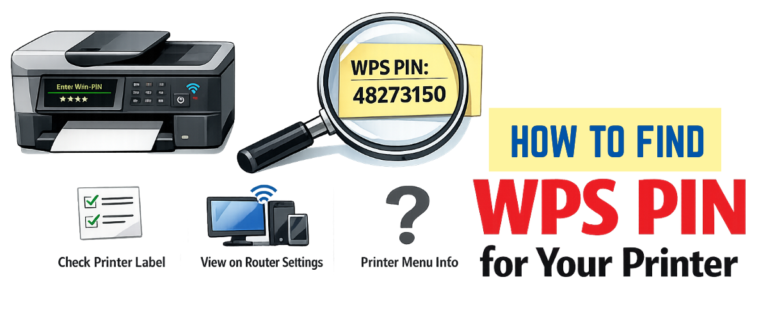
Establishing a connection between your HP printer and a computer requires the printer’s WPS pin. We’ll demonstrate how to locate the WPS pin on HP printer if you’re having problems. However, let’s first learn what a WPS pin is before moving on to finding the pin.
Where Is the WPS Pin on My HP Printer?
It is as simple as you can find the WPS pin on HP printer by printing out a network configuration report. You just need to hold the Wireless/Information button for about 3-5 seconds. Go to the printer’s screen settings; “Settings > Network > Wi-Fi“. Or you can read through a label that is inside the printer. Keep in mind that the PIN is valid for about 19-120 seconds. While reading through this post, you will know how to manage and go about the WPS PIN on HP printer.
What is a WPS PIN?
Your wireless router (Wi-Fi) uses an eight-digit string of numbers and/or letters called a WPS pin, or Wi-Fi Protected Setup Pin, to encrypt and secure your home network. Similar to a password, it is located at the bottom or back of every router.
Types of WPS Connection for HP Printer
You can connect your computer or laptop to your printer using a variety of WPS connection types. The two most typical WPS connections are:
- WPS Pin
- WPS Push Button
Printer Doesn’t Show a WPS PIN
Your printer may not display a WPS PIN in the following cases:
- If your HP printer is not in Wireless Setup Mode.
- The 90-second timeout has passed.
- Or the model needs a physical button press instead of a code displayed on the screen.
To resolve this:
- Use the HP Smart app,
- Print a network configuration page,
- Or turn on Wi-Fi setup mode.
How can I find the WPS PIN on HP Printer?
The printer’s WPS PIN can be printed on an information page. Or typically found on the printer’s display screen under the network or Wi-Fi settings. A page displaying the 8-digit PIN can be printed on many models. To do so, hold down the Information or Wireless buttons for 3-5 seconds.
Related Post: Find the WPS PIN for Top Printer Brands
Where is the WPS Button located on my Router?
The WPS button is usually found on the side, back, or occasionally the front of your router. It is a tiny, recessed button with the labels “WPS,” “WPS/Reset,” or an image of two arrows circling one another.
How do I connect an HP Printer using a WPS PIN: Here’s What to Do
It’s easy to connect your HP printer to your computer or another device if it has a display.
Follow these steps to find your HP printer’s WPS pin code:
- Activate your printer.
- Click the “Wireless button” on the “Control Panel”
- A blue light will begin to blink.
- Go to the “Wi-Fi Protected Setup” option after that.
- Choose the “WPS Pin” option.
- You will see an eight-digit code that is a WPS pin on the printer screen.
- To pair both of your devices, type your generated WPS pin code into the computer screen.
How can I connect an HP Printer using the WPS Push Button Method: All Possible Methods
Using the WPS Push Button to Connect your HP Printer
Incase your computer lacks a screen or control panel, you can use this method:
- Activate the printer.
- Verify that your router and printer are close enough to connect.
- On your printer, press the “Wireless button.
- Following the aforementioned step, a light will begin to flash.
- Now, for two to three seconds, hold down the “WPS button” on your router.
- The WPS light on your router will begin to blink.
- Your router’s and printer’s lights eventually stop blinking.
- It shows that the connection was made successfully.
Conclusion
Once you finish going through the above instructions, you should be able to connect your HP printer efficiently. This can be done only when you have clearly learned about the WPS PIN and the WPS push button. For any further assistance on where to find WPS PIN on HP printer, feel free to reach out to our Printers Technician Expert at any time. The team will guide you accordingly with the most suitable solutions.
FAQs
A. These are the steps to locate the WPS PIN for an HP DeskJet printer:
Hold both the Wireless and Information (i) buttons for 3-5 seconds until the lights flash.
Then, you will get an information page that will give you an 8-digit WPS PIN code.
This WPS PIN code will be valid for two minutes worth of time to complete the installation process of your printer.
A. The WPS PIN for an HP wireless printer can be found on your printer’s touch screen under Wi-Fi Protected Setup in the Network/Wireless Settings menu. If you do not have a screen, hold the Wireless and Information/Resume buttons to print out a network configuration report and create a WPS PIN.
A. WPS can be disabled on various wireless routers, like the Asus RT-N66U, by using their respective WPS settings.
To access it, use the following steps:
1. Click on “Wireless” and select “WPS Settings” within that module.
2. You will see 3 options on that page:
3. WPS button press from your router;
4. Enter a PIN from your router into a wireless device, or disable WPS.
To disable WPS: Select Disable WPS.
Disabling WPS will provide additional protection from a wireless security breach on your network.
A. WPS pins are always an 8-digit code. However, the first two digits are the maker of your device, and the remaining six numbers are assigned at random.
A. The majority of WPS-capable smartphones have their WPS buttons located near either side of the device. This totally depends on how the smartphone was built. Some WPS buttons appear on the top of the phone and others on the bottom. Thus, you must search for a WPS symbol to assist you in locating your specific device’s WPS button.